Optimising Interactive Workplace Tech: The Meeting Room Governance, Analytics & Lifecycle Playbook
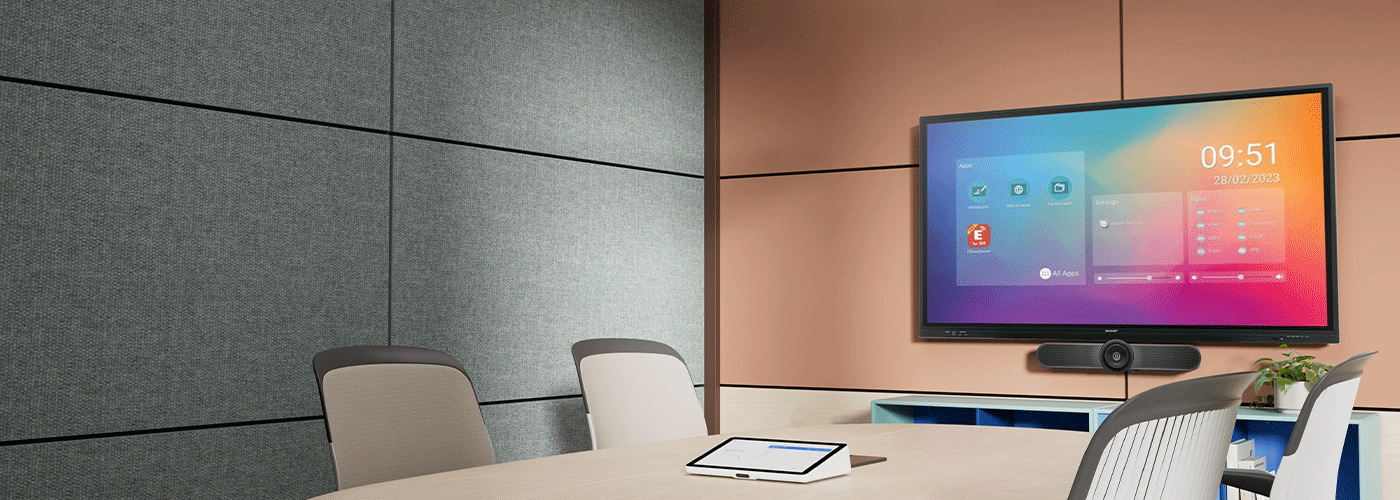
How to Optimise Interactive Displays and Meeting Rooms in New Zealand
Installing interactive displays in meeting rooms is only the beginning.
For IT teams, workplace leaders and facilities managers, the bigger challenge is ensuring that meeting-room technology continues to deliver value after deployment. Displays need to be used consistently, devices need to be maintained, rooms need to be monitored, energy consumption needs to be controlled, and technology needs to remain secure throughout its lifecycle.
This is where workplace visual technology governance becomes important.
Workplace visual technology governance is the combination of standardised meeting-room workflows, user adoption, device management, security controls, energy management, utilisation measurement and lifecycle planning used to maximise the value of interactive displays and collaboration technology.
For New Zealand organisations managing multiple offices, the objective is simple:
Make meeting-room technology easy to use, easy to manage and valuable throughout its working life.
This guide explains how to optimise interactive displays and meeting-room technology after deployment, including staff adoption, centralised management, energy optimisation, utilisation analytics, privacy, security and hardware lifecycle planning.
What Does Interactive Display Optimisation Mean?
Interactive display optimisation is the process of improving the performance, adoption, security and return on investment of workplace display technology after it has been installed.
It goes beyond whether a screen is switched on and working.
An effective optimisation programme considers:
Are employees actually using the interactive features?
Can meetings start without technical assistance?
Are displays configured consistently?
Are firmware and software kept current?
Are meeting rooms being used efficiently?
Are devices consuming unnecessary energy?
Are cameras and microphones appropriately controlled?
Are security policies being applied consistently?
When should individual displays be repaired, upgraded or replaced?
Is the organisation receiving the expected return on its investment?
For a single meeting room, these questions may be relatively straightforward.
For an organisation with 20, 50 or 100 meeting rooms across multiple New Zealand locations, they become a fleet-management and governance challenge.
Driving Staff Adoption: Eliminating Meeting-Room Friction
The most sophisticated interactive display provides little value if employees continue to use it like a conventional television.
One of the biggest optimisation opportunities is therefore user adoption.
Employees should not need to remember a different process for every meeting room. The more consistent the experience, the more likely people are to use the technology confidently.
The four principles of meeting-room adoption
1. Standardise
Use consistent display interfaces, connection methods and meeting workflows wherever practical.
2. Simplify
Reduce the number of steps required to start a meeting, share content or begin a whiteboarding session.
3. Train
Give employees practical training focused on the tasks they actually need to perform.
4. Reinforce
Use quick-reference instructions and ongoing support to help employees adopt features beyond basic screen sharing.
Standardise the user experience
Organisations deploying interactive displays across multiple rooms should aim for a consistent experience.
For example, if employees use Sharp PN-LC, PN-LM or PN-L2B Series interactive displays across different room types, the basic workflow should remain familiar wherever possible.
A user should know:
How to wake the display
How to connect a laptop
How to start a video meeting
How to share content
How to annotate
How to use the digital whiteboard
How to save or share meeting content
How to finish the session
Consistency reduces the learning curve and makes support easier for IT teams.
Make meeting starts as simple as possible
Every additional step creates another opportunity for something to go wrong.
A well-designed meeting-room workflow should minimise:
Cable swapping
Input selection
Manual device configuration
Login confusion
Searching for remote controls
Switching between conferencing devices
Where the technology configuration supports it, organisations should aim for a one-touch or minimal-step meeting start.
The goal is not simply technical convenience. Faster starts mean less lost employee time and fewer interruptions to the meeting itself.
Promote interactive features
Employees often default to familiar behaviours.
If they have always used a screen for presentations, they may not automatically start using:
Digital whiteboarding
Touch annotation
Collaborative brainstorming
Screen markup
Digital meeting notes
Training should therefore demonstrate why these features are useful rather than simply explaining what buttons do.
For example:
Instead of:
"Here is how to use the annotation function."
Show:
"Use annotation to mark up the proposal during the client meeting, then save the resulting notes for the project team."
That connects the technology to a real business outcome.
Digital Whiteboarding: Turning Meetings Into Action
Physical whiteboards have a major limitation in hybrid environments.
People in the room can see what has been written, but remote participants may struggle to read it. Once the meeting ends, the information can also disappear unless someone photographs or manually transcribes it.
Interactive displays provide an alternative.
A digital whiteboard can allow teams to:
Brainstorm together
Annotate documents
Draw diagrams
Highlight important information
Capture meeting decisions
Develop project plans
Share content with remote participants
The optimisation opportunity is to make saving and sharing the output part of the standard meeting workflow.
A productive meeting should not finish with:
"I'll take a photo of the whiteboard and send it around."
Instead, teams should be encouraged to capture digital collaboration outputs and distribute them through the organisation's approved collaboration or document-management environment.
Centralised Fleet Management & Remote Monitoring
Managing one interactive display is relatively easy.
Managing dozens of displays across Auckland, Wellington, Christchurch and regional offices is a different proposition.
For multi-site organisations, IT teams should establish a centralised management strategy wherever the selected display and management platform support it.
The objective is to reduce unnecessary site visits and maintain consistent configurations across the fleet.
What should IT teams manage?
A meeting-room technology management framework can include:
Device inventory
Device location
Model and serial information
Software and firmware versions
Configuration settings
Network connectivity
Power schedules
User permissions
Security settings
Maintenance history
Warranty information
Replacement dates
The exact capabilities available will depend on the display model and management platform selected.
Remote device monitoring
Remote monitoring can help IT teams identify issues without waiting for an employee to report them.
Depending on the management solution, useful information may include:
Whether the display is online
Device availability
Software or firmware status
Connectivity information
Configuration status
Operational alerts
This creates a shift from reactive support to proactive management.
Instead of:
"The screen in Meeting Room 4 isn't working."
IT can potentially identify an issue before the next meeting begins.
Standardised configurations
A fleet should ideally have a documented baseline configuration.
For example:
Corporate meeting-room baseline
Approved network configuration
Approved wireless settings
Standard sleep and power settings
Approved input sources
Restricted administrator access
Approved conferencing software
Standard naming convention
Approved firmware/software versions
This makes it easier to troubleshoot individual rooms and maintain consistent security.
Firmware, Software & Configuration Management
Interactive displays are connected technology endpoints and should be incorporated into the organisation's broader IT management processes.
Keeping software and firmware current can help maintain security, stability and compatibility.
However, updates should be managed rather than performed randomly.
Establish an update policy
A practical update process should define:
Who:
Who is responsible for approving and deploying updates?
What:
Which firmware, software and applications are approved?
When:
When can updates be installed without disrupting meetings?
How:
How are updates tested and deployed?
What if something goes wrong:
What is the rollback or recovery process?
Use maintenance windows
Where the technology supports scheduled updates, organisations can consider deploying them outside normal meeting hours.
For example, an organisation operating from 8:00am to 6:00pm could establish an overnight maintenance window.
The exact schedule should reflect the organisation's operating hours and the capabilities of the selected management platform.
Test before fleet-wide deployment
For larger deployments, avoid automatically pushing every update to every room without validation.
A more controlled approach is:
Test → Pilot → Monitor → Deploy → Verify
This allows IT teams to identify compatibility issues before they affect an entire fleet.
Role-Based Access & Meeting-Room Governance
Meeting-room displays should not be treated as unrestricted consumer devices.
Where interactive displays provide access to network settings, applications, wireless configuration or other administrative functions, access should be controlled.
Separate users from administrators
Employees need access to the functions required for meetings.
They generally should not need unrestricted access to:
Network configuration
Security settings
System administration
Firmware controls
Application installation
Device management
Where supported, organisations should use administrator controls and passwords to prevent accidental or unauthorised configuration changes.
Create a meeting-room governance policy
A simple policy should establish:
Who owns the technology
Who administers it
Who supports users
Which applications are approved
Which devices may connect
How updates are managed
How incidents are reported
How devices are retired
This turns meeting-room technology from an unmanaged collection of AV equipment into an accountable technology environment.
Energy Optimisation & Sustainability Reporting
Meeting-room displays can remain powered for long periods even when rooms are empty.
Energy management therefore provides an opportunity to reduce unnecessary consumption while also supporting corporate sustainability objectives.
Automate power schedules
Where supported by the equipment, organisations can configure displays to:
Enter standby after periods of inactivity
Power down outside working hours
Use different schedules for weekdays and weekends
Follow building operating hours
For example, an organisation could establish a policy where meeting-room displays automatically enter an energy-saving state overnight and during weekends.
The appropriate schedule depends on the organisation's working patterns.
Use energy-saving features
Modern commercial displays may provide features such as:
Eco modes
Automatic brightness adjustment
Ambient-light sensing
Automatic standby
Where available, these should be evaluated during deployment rather than left at default settings indefinitely.
Why energy management matters
The benefit of power scheduling increases with fleet size.
If one display saves only a modest amount of energy, the financial impact may be small.
If the same policy is applied to 50 or 100 displays, the aggregate saving can become meaningful.
Measure the result
For organisations with formal sustainability reporting, establish a baseline and measure:
Operating hours
Standby hours
Estimated energy consumption
Changes after power-policy deployment
Number of devices covered
Estimated annual kWh reduction
The resulting data can contribute to internal sustainability reporting and help justify further optimisation.
Meeting-Room Utilisation Analytics: Are Your Spaces Being Used Effectively?
Buying more meeting-room technology does not necessarily solve a meeting-room capacity problem.
Before adding rooms or upgrading equipment, organisations should understand how existing spaces are being used.
Measure room utilisation
Useful metrics may include:
Room occupancy
Booking frequency
Actual versus booked occupancy
Average meeting duration
Peak booking periods
No-show rates
Room capacity versus actual attendance
Technology usage
Frequency of technical issues
These metrics can reveal patterns that are difficult to see from booking calendars alone.
Example
Imagine an organisation has:
Five large boardrooms
Ten medium meeting rooms
Fifteen huddle rooms
Analytics might reveal that the large boardrooms are frequently booked for meetings involving only four or five people, while smaller rooms are consistently unavailable.
The organisation could respond by:
Encouraging appropriate room selection
Changing booking policies
Reconfiguring existing spaces
Introducing mobile displays
Increasing the number of smaller collaboration rooms
The technology investment then becomes part of a broader workplace optimisation strategy.
Using Analytics to Improve Interactive Display Adoption
Utilisation data can also reveal whether employees are actually using interactive functionality.
Consider tracking:
Number of interactive sessions
Whiteboarding sessions
Annotation usage
Wireless sharing sessions
Video-conferencing sessions
Display operating hours
The specific metrics available will depend on the display, software and management platform.
The objective is not to measure technology usage for its own sake.
Instead, analytics should answer questions such as:
Are employees using the capabilities we invested in?
Which rooms are most successful?
Which features are being ignored?
Where is additional training needed?
Which rooms require a different technology configuration?
This creates a feedback loop:
Deploy → Measure → Learn → Optimise → Repeat
The Interactive Display Lifecycle: Plan Beyond Installation
A common mistake is to treat installation as the end of the project.
For IT and facilities teams, installation should instead be the beginning of the technology lifecycle.
A lifecycle plan should cover:
Procurement
Deployment
Adoption
Support
Monitoring
Maintenance
Optimisation
Refresh
Retirement
Replacement
Establish a lifecycle register
Maintain a record for every interactive display, including:
Model
Serial number
Location
Installation date
Warranty
Support arrangements
Software/firmware version
Accessories
Mounting equipment
Usage profile
Planned refresh date
This allows IT and facilities teams to identify ageing equipment before it becomes a business problem.
When Should an Interactive Display Be Replaced?
There is no universal replacement date for every commercial interactive display.
Instead, organisations should evaluate a combination of age, condition, performance, supportability and business requirements.
Consider replacement when:
The technology no longer meets user requirements
For example, employees may require capabilities such as improved connectivity, higher resolution or newer collaboration workflows.
Support becomes difficult
Older products may eventually become harder to support because of discontinued components, software or firmware.
Reliability declines
Frequent faults can make an ageing display more expensive to maintain than replace.
The room has changed
A room originally designed for six people may now regularly accommodate 12, requiring a larger display and different conferencing configuration.
Security requirements have changed
An older endpoint may no longer meet the organisation's current security or management requirements.
The cost of ownership is increasing
Repair, downtime and support costs should be considered alongside the purchase price of a replacement.
Planning a 3–5 Year Technology Roadmap
A structured three-to-five-year planning horizon can help organisations avoid replacing meeting-room technology reactively.
This does not mean every display should automatically be replaced after three or five years.
Instead, use the period to assess:
Technology relevance
Reliability
Warranty and support
User adoption
Room utilisation
Security requirements
Energy performance
Compatibility with collaboration platforms
Cost of continued ownership
A phased refresh may then be more appropriate than replacing an entire fleet simultaneously.
Example lifecycle approach
Year 0: Deploy
Install standardised interactive displays and collaboration technology.
Year 1: Optimise
Measure adoption, resolve user friction and establish management processes.
Year 2: Review
Analyse room utilisation, technology performance and support requirements.
Year 3: Assess
Identify rooms where technology is approaching the end of its useful lifecycle or no longer meets requirements.
Years 4–5: Refresh
Phase replacements based on business need, room utilisation, supportability and budget.
This approach turns hardware refresh into a planned business process rather than an emergency purchase.
Leasing and Technology Refresh
For organisations that want predictable technology expenditure, financing or leasing can be considered as part of the lifecycle strategy.
Rather than purchasing equipment outright and then facing a large replacement cost several years later, a financing model can potentially align technology payments with the period in which the equipment is being used.
Sharp NZ offers financing options for workplace technology, subject to solution configuration and eligibility.
The important consideration is not simply the monthly payment.
IT and finance teams should compare:
Total cost of ownership
Financing cost
Support
Installation
Upgrade options
Residual value
End-of-term arrangements
Replacement requirements
A well-structured commercial model can make it easier to maintain a predictable technology refresh programme.
Ongoing Privacy Act 2020 & Security Compliance
Meeting-room technology increasingly includes cameras, microphones, connected displays and cloud-based collaboration services.
That means privacy and security need to remain part of the lifecycle management process.
The New Zealand Privacy Act 2020 establishes obligations around the collection, storage, use and disclosure of personal information.
Organisations should therefore consider privacy throughout the meeting-room technology lifecycle.
Camera and microphone governance
For meeting rooms containing cameras and microphones, organisations should establish clear rules around:
When devices are active
Which applications can access them
Who can control them
How users know when they are active
How recordings are handled, if recording is enabled
What happens when a meeting ends
For sensitive environments such as legal, healthcare or executive meeting rooms, these controls become particularly important.
Clear meeting sessions
Where supported by the technology, organisations should ensure that temporary meeting information is not unnecessarily retained on shared devices.
Depending on the system, this may include:
Temporary files
Whiteboard content
Wireless presentation sessions
Guest credentials
User login information
Cached data
The exact data-clearing capabilities should be confirmed for the selected display and software configuration.
Review privacy settings regularly
Privacy is not a one-time installation task.
Review controls when:
Firmware changes
Software changes
New conferencing platforms are introduced
Room technology is upgraded
The organisation changes its privacy policy
Devices are relocated
New users or administrators are introduced
Building a Meeting-Room Governance Framework
A mature organisation can formalise meeting-room technology management through a simple governance framework.
People
Define:
Technology owner
IT administrator
Facilities owner
Workplace experience owner
Service desk
External support partner
Process
Define:
Deployment standards
Update process
Security reviews
Incident management
User training
Asset management
Refresh process
Technology
Define:
Approved display models
Approved conferencing platforms
Network requirements
Wireless presentation technology
Mounting standards
Audio/video standards
Management platforms
Measurement
Define:
Room utilisation
Technology adoption
Meeting setup time
Technical incidents
Energy consumption
Support tickets
User satisfaction
Lifecycle costs
This framework creates accountability and makes it easier to scale meeting-room technology across multiple locations.
A Practical Interactive Display Optimisation Checklist
Use this checklist when reviewing an existing meeting-room technology fleet.
User adoption
Are displays easy to start?
Is the connection process consistent?
Can users easily share content?
Are interactive features being used?
Can employees save collaborative work?
Are quick-start instructions available?
IT management
Is every display recorded in the asset register?
Are administrators identified?
Are firmware and software versions documented?
Are configuration standards defined?
Can devices be monitored remotely where supported?
Is there a documented support process?
Security
Are administrator controls protected?
Are network requirements documented?
Are wireless settings appropriate?
Is guest access separated where necessary?
Are cameras and microphones governed?
Are privacy requirements documented?
Energy
Are displays automatically entering standby?
Are operating hours aligned with building hours?
Are energy-saving modes enabled where appropriate?
Is energy performance measured?
Utilisation
Which rooms are most frequently used?
Which rooms are underutilised?
Are rooms being booked according to capacity?
Are meetings regularly overrunning?
Are interactive features being used?
Lifecycle
Is the installation date recorded?
Is warranty information available?
Is there a planned refresh date?
Are ageing devices identified?
Is replacement based on business need rather than failure alone?
How Sharp NZ Can Support Interactive Workplace Technology
Optimising interactive workplace technology is easier when the display, conferencing equipment, installation and ongoing support are considered as one environment.
Sharp NZ provides workplace visual technology including interactive displays, professional displays, digital signage, projection and collaboration solutions.
Sharp interactive displays can be deployed across meeting rooms, training spaces, classrooms and collaborative environments, with solutions available across different screen sizes and room configurations.
Sharp NZ can support organisations with:
Interactive display selection
Meeting-room design
Display installation
Mobile display solutions
Collaboration technology
Professional visual solutions
User training
Technical support
Multi-site deployments
Technology lifecycle planning
For organisations with multiple locations, standardising technology can also help simplify user training, IT support and asset management.
The goal is not simply to install more screens.
It is to create a consistent, manageable and productive workplace technology environment.
Interactive Workplace Technology FAQ
How can we increase adoption of interactive displays in the workplace?
The most effective approach is to reduce friction. Standardise the user experience, simplify meeting starts, provide practical training and demonstrate how interactive features such as digital whiteboarding and annotation solve real workplace problems.
How do we measure interactive display ROI?
Measure the productivity and operational outcomes associated with the technology. Useful metrics include meeting setup time, technical interruptions, room utilisation, printing costs, employee adoption and user satisfaction. Compare the value of these improvements against the total cost of ownership.
Can interactive displays be managed across multiple NZ offices?
Multi-site display management depends on the selected display models and management platform. Where centralised management is supported, IT teams can establish standard configurations and remotely manage supported devices rather than relying entirely on on-site intervention.
How often should interactive displays be updated?
Firmware and software updates should follow the manufacturer's recommendations and the organisation's IT change-management process. Larger fleets should consider testing updates on a small group of devices before wider deployment.
Should meeting-room displays automatically turn off?
Where supported, automated standby or power scheduling can reduce unnecessary operating hours when meeting rooms are empty. Schedules should reflect actual building and meeting-room usage.
How long do commercial interactive displays last?
There is no single lifespan that applies to every commercial interactive display. Actual service life depends on usage, operating environment, maintenance, technology requirements and manufacturer specifications. Organisations should plan a lifecycle review rather than automatically replacing every display after a fixed number of years.
When should an organisation replace an interactive display?
Consider replacement when the display no longer meets user requirements, becomes unreliable, is difficult to support, cannot meet current security or compatibility requirements, or has a total cost of ownership that makes replacement more economical.
Should all meeting rooms use the same interactive display?
Standardisation can provide significant benefits, particularly for larger organisations. Consistent technology reduces training requirements, simplifies support and creates a familiar experience for employees moving between rooms. However, display size and configuration should still reflect the purpose and dimensions of each room.
How can meeting-room utilisation analytics improve workplace planning?
Utilisation data can identify rooms that are consistently overbooked, underused or mismatched to meeting size. Organisations can use this information to reconfigure spaces, change booking policies or invest in different room types.
How should cameras and microphones be managed?
Cameras and microphones should be treated as connected technology endpoints. Organisations should establish controls covering access, activation, conferencing applications, recording, privacy and data handling. Sensitive environments may require additional controls.
Does the New Zealand Privacy Act apply to meeting-room technology?
The Privacy Act 2020 may apply where meeting-room systems collect, use, store or disclose personal information. Organisations should assess the complete technology environment, including cameras, microphones, user accounts, conferencing platforms and shared content, against their privacy obligations.
What is the best way to manage an interactive display fleet?
A strong approach combines standardisation, centralised management where supported, security governance, user training, utilisation analytics, energy management and lifecycle planning. The specific management tools should be selected according to the display models, software and organisation's IT environment.
The Bottom Line: Optimisation Is Where Workplace Technology Value Grows
Installing interactive displays creates the capability.
Optimisation creates the value.
A successful workplace visual technology strategy does not end when the installation team leaves. IT, facilities and workplace teams should continually evaluate how technology is being used, how reliably it is operating, whether rooms are being utilised effectively and whether the organisation is getting the expected return from its investment.
The optimisation cycle is straightforward:
Standardise → Educate → Monitor → Measure → Optimise → Refresh
For organisations managing multiple meeting rooms, this approach can transform interactive displays from individual pieces of AV hardware into a managed workplace technology ecosystem.
Whether the goal is increasing interactive display adoption, reducing meeting-room friction, improving energy efficiency, strengthening governance or planning the next technology refresh, a lifecycle approach helps ensure the investment continues delivering value.

Craig Betteridge is a Product Marketing Manager at Sharp New Zealand, specialising in visual solutions, visitor management, voice and data, and workplace software. With extensive experience across leading technology brands, he brings a strong understanding of enterprise technology and customer needs, focused on helping organisations improve efficiency, security, and workplace performance.