Common Meeting-Room and Collaboration Pain Points (and How to Fix Them)
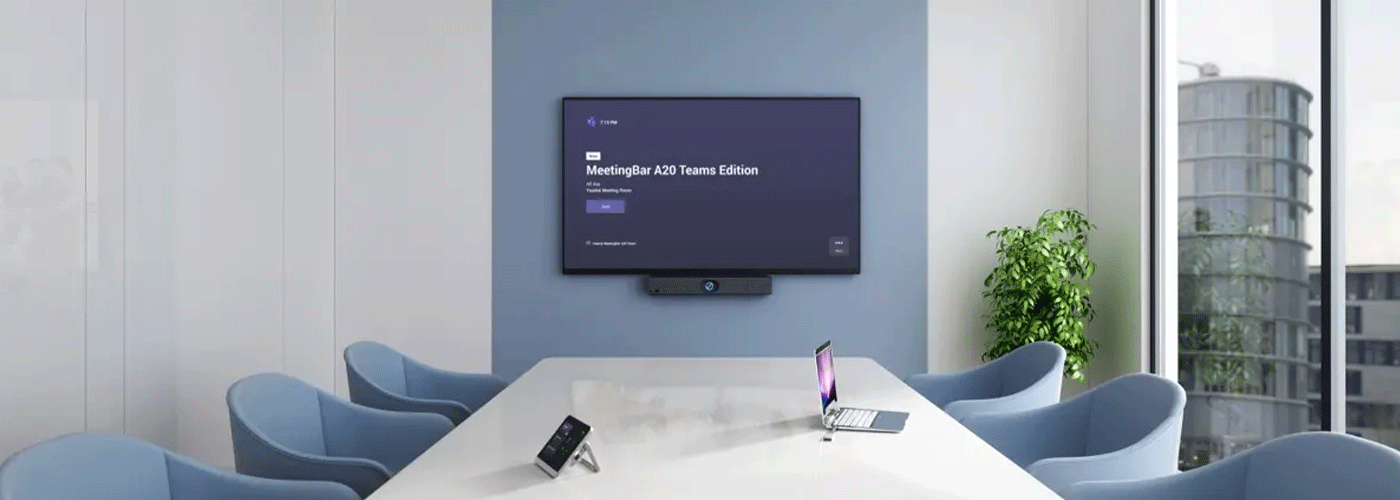
How organisations can improve hybrid meeting room collaboration.
Hybrid meetings are now a normal part of how New Zealand organisations work. But when meeting-room technology is difficult to connect, audio is unclear, remote participants cannot see what is happening, or collaboration content disappears at the end of a session, technology can become a source of friction rather than a facilitator.
These issues are commonly described as meeting-room collaboration friction: the technical, usability and workflow obstacles that make it harder to start, run and complete a meeting effectively.
For IT Leads, Facilities Managers, Operations Directors and Workplace Experience teams, solving meeting-room friction is not simply a matter of installing a larger screen. The goal is to create meeting spaces that are easy to use, consistent across rooms and capable of supporting both people in the room and those joining remotely.
Quick answers: meeting-room collaboration pain points
What are the most common meeting-room pain points?
Common meeting-room problems include cable and adapter confusion, slow meeting setup, poor audio and video quality, difficult content sharing, limited interaction with presentations, lost whiteboard notes and inconsistent technology between rooms.
What causes hybrid meeting setup delays?
Hybrid meeting delays can be caused by incompatible cables, missing adapters, incorrect display inputs, driver requirements, unfamiliar conferencing equipment and inconsistent room configurations. Standardising connection methods and meeting-room workflows can remove many of these recurring problems.
What is an interactive meeting-room display?
An interactive meeting-room display is a large-format commercial screen that allows users to interact directly with content using touch, digital annotation and collaboration tools. Unlike a conventional display, it can support activities such as brainstorming, whiteboarding, document annotation and collaborative presentations.
How can organisations improve hybrid meeting collaboration?
Organisations can improve hybrid collaboration by combining a suitably sized interactive display with simple laptop connectivity, video conferencing, appropriate audio coverage, wireless content sharing and digital whiteboarding. Standardising the experience across rooms can also make meeting technology easier for employees and IT teams to use.
What size interactive display is suitable for a meeting room?
The appropriate display size depends on room dimensions, viewing distance, number of participants, seating layout and content type. As a starting point, smaller huddle spaces may suit 43"–55" displays, medium rooms may suit 65"–75", while larger boardrooms may benefit from 75"–86" displays.
How NZ organisations can improve hybrid meeting room collaboration
A productive meeting room should make technology feel almost invisible.
Employees should be able to connect their device, start a meeting, share information, annotate content and collaborate without needing to troubleshoot the room.
For New Zealand organisations, a practical meeting-room strategy typically has five components:
- Simple connectivity
- Appropriate display technology
- Integrated audio and video
- Interactive collaboration
- Consistent room design and support
The right combination depends on how each room is used.
The 5 most common meeting-room collaboration pain points
1. Connection delays and the cable-and-dongle shuffle
One of the most common meeting-room frustrations occurs before the meeting has even started.
A presenter needs to find the right cable. Someone looks for an HDMI adapter. The display is on the wrong input. The laptop does not recognise the screen. Another person tries a different connection.
Individually, these problems may only take a few minutes to resolve. Across hundreds or thousands of meetings, however, repeated setup friction can become a measurable productivity issue.
The problem is often not that the technology is faulty. It is that the room has too many steps between sitting down and starting the meeting.
How to reduce connection friction
Standardise the way employees connect to meeting-room displays.
USB-C can simplify bring-your-own-device workflows by allowing compatible laptops to connect to a display through a single cable. Depending on the display and configuration, that connection can carry video, audio, data and power.
Wireless presentation can provide another option where users need to share content without physically connecting a laptop.
Sharp's PN-LM Series, for example, supports USB-C connectivity for video, audio, data and power delivery, while also supporting wireless content sharing through its integrated collaboration functionality.
The objective is simple:
Reduce the number of steps required to start collaborating.
2. Remote participants feel disconnected
Hybrid meetings have two audiences: the people physically in the room and the people joining remotely.
A remote participant may be able to hear the meeting but struggle to see who is speaking, read information on the main display or follow what is being written on a physical whiteboard.
Audio problems can be equally disruptive. A laptop microphone positioned at one end of a boardroom is unlikely to provide the same experience as a conferencing system designed for the room.
How to improve the hybrid experience
The room should be designed around the complete meeting experience rather than the display alone.
Consider:
- Camera field of view
- Microphone pickup
- Speaker coverage
- Display position
- Seating layout
- Lighting
- Remote participant visibility
- Digital collaboration tools
An integrated conferencing solution can simplify this configuration.
Sharp's PN-ZCMS1 AV Soundbar combines speakers, a microphone array and USB camera functionality in one device and is designed to complement compatible Sharp interactive displays. Sharp NZ specifies a 120° camera field of view and a six-microphone array with echo cancellation.
The important principle is that remote participants should have access to the same important information as people physically in the room.
3. Static screens limit collaboration
A conventional display is designed primarily to show information.
That is useful for presentations, but modern meetings often require participants to actively work with information.
Teams may need to:
- Annotate a presentation
- Mark up a document
- Sketch an idea
- Review a design
- Highlight information
- Brainstorm
- Work through a diagram
- Capture decisions
An interactive display changes the role of the screen from a passive viewing surface into a shared working surface.
How interactive displays improve collaboration
Sharp's current interactive display portfolio includes the PN-LM, PN-LC and PN-L2B Series.
The PN-LM Series is available in 43" and 55" sizes and provides 4K resolution, 20-point touch, built-in whiteboarding, Windows Ink support and USB-C connectivity.
The PN-LC Series is available in 65", 75" and 86" sizes, with 4K resolution, 20-point touch and built-in smart functionality for meetings, training and collaborative environments.
The PN-L2B Series is available in 65", 75" and 86" sizes and combines 4K UHD resolution, 20-point touch, built-in Android functionality, USB-C connectivity and Windows Ink support.
This range means organisations can select an interactive display based on room size and use case rather than adopting a single screen size for every space.
4. Whiteboard ideas disappear after the meeting
Physical whiteboards are still useful for brainstorming, but they create a familiar workflow problem.
At the end of the meeting, someone takes a photograph.
The notes then have to be interpreted, typed up and distributed.
Sometimes the photograph is difficult to read. Sometimes an action point is missed. Sometimes the information is never transferred into the team's normal workflow.
Digital whiteboarding provides a different workflow
Interactive displays allow teams to write directly onto a digital workspace and annotate presentations or documents.
Depending on the software and workflow used, teams can then save, distribute or continue working with the resulting content.
This changes whiteboarding from a temporary activity into a reusable digital meeting asset.
For organisations trying to reduce paper-based meeting processes, digital whiteboarding can also support broader paper-reduction initiatives.
5. Consumer TVs are not always the right meeting-room technology
A domestic television can provide a large image at a relatively low purchase price. However, meeting rooms often have different requirements from a home entertainment environment.
When specifying technology for a professional meeting space, consider:
- Operating hours
- Brightness
- Viewing distance
- Connectivity
- Touch capability
- Commercial warranty
- Device management
- Installation
- Security
- Local support
Commercial displays are designed around professional environments and can offer features that are particularly relevant to organisations managing multiple rooms.
Sharp's professional display portfolio includes interactive displays, large-format displays and collaboration accessories designed for different workplace applications.
The key question is therefore not:
"What is the biggest screen I can buy?"
It is:
"What display technology is appropriate for how this room will actually be used?"
A practical framework for fixing meeting-room collaboration problems
Meeting-room performance depends on more than the display.
A useful way to approach an upgrade is to work through five areas.
1. Simplify connectivity
The first priority should be making it easy to get content onto the screen.
Consider:
- USB-C connectivity
- Wireless content sharing
- Consistent cables
- Clearly labelled inputs
- Standardised room configurations
- Simple user instructions
The fewer steps involved, the less likely employees are to need IT support.
Sharp's interactive display range includes USB-C connectivity and wireless sharing options designed to simplify bring-your-own-device collaboration.
2. Make the display interactive when the meeting requires it
Not every meeting needs touch.
If a room is primarily used for watching presentations, a professional large-format display may be sufficient.
If users regularly brainstorm, annotate, train, review documents or work through ideas together, an interactive display can provide additional value.
A simple selection principle is:
Choose an interactive display when participants need to work with the content, not simply view it.
Sharp's interactive display portfolio is designed for applications including corporate meeting rooms, training, education and collaborative workspaces.
3. Design audio and video around the room
The camera and microphones should be selected based on the physical characteristics of the room.
Consider:
- Room dimensions
- Number of participants
- Table arrangement
- Camera field of view
- Microphone pickup
- Speaker positioning
- Echo and background noise
- Display and camera relationship
Integrated AV hardware can reduce the number of separate devices employees need to operate.
The Sharp PN-ZCMS1, for example, combines camera, microphone and speaker functions and is designed to work with compatible Sharp displays.
4. Make collaboration content reusable
A meeting should not end when the participants leave the room.
Digital whiteboarding and annotation can allow teams to retain meeting outputs rather than relying on photographs of physical whiteboards or handwritten notes.
A useful workflow is:
Discuss → annotate → capture → share → continue
This can be particularly useful for project teams, design reviews, training sessions and workshops.
5. Standardise the user experience
For organisations with multiple meeting rooms, standardisation can be as important as the hardware itself.
Employees should know:
- How to wake the display
- How to connect a laptop
- How to start a video meeting
- How to share content
- How to annotate
- How to use the digital whiteboard
- How to save or share meeting content
- How to finish the session
Sharp's meeting-room governance guidance recommends standardising the user experience across rooms so employees encounter familiar workflows wherever they work.
Meeting-room technology selection guide
The correct technology depends on the room, not simply the number of seats.
| Workspace | Typical capacity | Display starting point | Useful capabilities |
| Huddle space | 2–8 | 43"–55" interactive display | USB-C, wireless sharing, touch, whiteboarding |
| Small meeting room | 4–8 | 55"–65" interactive display | 4K, touch, conferencing integration |
| Medium meeting room | 8–15 | 65"–75" interactive display | 4K, multi-touch, digital annotation, AV |
| Large boardroom | 15–30+ | 75"–86" interactive display | Large viewing area, conferencing, touch collaboration |
| Training / collaborative space | Varies | 65"–86"+ depending on room | Touch, whiteboarding, annotation, flexible connectivity |
These are starting points rather than fixed specifications. Sharp's NZ guidance similarly recommends considering viewing distance, attendee numbers, content type, camera position, ambient lighting and room flexibility when selecting display size.
How to choose the right meeting-room display
Screen size is only one part of the decision.
Before selecting an interactive display, IT, facilities and procurement teams should consider the following.
1. Viewing distance
Measure the distance between the display and the furthest regular participant.
A larger room generally requires a larger display so detailed content remains readable.
2. Content type
A meeting based on simple presentations has different requirements from one involving spreadsheets, diagrams, CAD drawings, financial information or detailed documents.
3. Interaction
If participants will regularly annotate, brainstorm or manipulate content, prioritise touch performance and digital whiteboarding.
4. Existing technology
Consider compatibility with:
- Microsoft 365
- Microsoft Teams
- Zoom
- Google Meet
- Existing laptops
- Network infrastructure
- Wireless presentation systems
An interactive display should fit into the organisation's technology ecosystem rather than create another isolated platform.
5. Room lighting
Natural light and reflections can affect readability. Consider brightness, anti-glare properties and screen positioning during the specification process.
6. Operating requirements
Consider how often the room is used and whether the display needs to operate for extended periods.
7. IT management
For multiple rooms or locations, consider how equipment will be maintained, monitored, updated and replaced over its lifecycle.
Diagnosing meeting-room problems: a practical checklist
| What you are experiencing | Potential cause | What to investigate |
| Meetings start late | Complicated connectivity | USB-C, wireless presentation and input selection |
| Presenters need IT assistance | Inconsistent room configuration | Standardise connection and meeting workflows |
| Remote attendees cannot follow | Poor AV coverage | Camera, microphones, speakers and display positioning |
| Participants cannot annotate | Passive display | Interactive touchscreen technology |
| Whiteboard actions disappear | Physical-only workflow | Digital whiteboarding and content capture |
| Screen is difficult to read | Display or room specification | Screen size, viewing distance, brightness and lighting |
| Rooms work differently | No standardisation | Common equipment and user workflows |
| IT receives repeated support requests | Technology is difficult to use | Simplify the user experience |
This approach helps organisations distinguish between a hardware problem and a workflow problem.
Often, the most effective improvement is not simply replacing a display. It is removing unnecessary steps from the complete meeting process.
The business case for fixing meeting-room friction
Meeting-room technology can be evaluated as a productivity investment rather than simply an IT or facilities purchase.
Calculate the cost of setup delays
For example, consider an organisation where meeting-room issues consume an average of five minutes at the start of 10 meetings each working day.
10 meetings × 5 minutes = 50 minutes per day
Across 220 working days:
50 minutes × 220 = 11,000 minutes
That's approximately:
183 hours per year
This is an illustrative calculation, not an industry average. Organisations should replace the assumptions with their own meeting volume and measured setup time.
The same calculation can be applied across multiple rooms.
Meeting-room productivity formula
Annual hours lost =
Number of meetings × average setup delay in minutes × working days ÷ 60
Once the organisation has established its own baseline, it can compare the cost of meeting-room friction with the cost of improving the room technology and workflow.
Measure more than meeting setup time
A meeting-room business case can also consider:
- IT support requests
- User satisfaction
- Meeting-room utilisation
- Remote participant experience
- Time spent troubleshooting
- Printed meeting materials
- Room consistency across locations
- Equipment lifecycle
- Training requirements
- Employee adoption
For larger organisations, standardisation can create additional value by reducing the number of different technologies that IT teams need to support.
Meeting-room technology for different NZ organisations
Different sectors have different collaboration requirements.
Corporate workplaces
Corporate meeting rooms commonly need to support presentations, video conferencing, project meetings, executive discussions and collaborative workshops.
The priority is often a consistent user experience across multiple rooms.
Legal environments
Legal teams may need to review documents, annotate information and conduct meetings with internal and external participants.
High-resolution displays and interactive annotation can be useful where detailed documents form part of the meeting workflow.
Healthcare
Healthcare environments may have additional requirements around privacy, room configuration, hygiene and information security.
Technology selection should be assessed against the organisation's specific operational and security requirements.
Education and training
Training rooms and education environments often benefit from touch interaction, digital whiteboarding, annotation and wireless content sharing.
Sharp's interactive displays are designed for applications spanning corporate meetings, training and education environments.
The role of standardisation in multi-room environments
A single meeting room can be relatively easy to configure.
Managing 10, 20 or 100 meeting spaces is different.
At that scale, organisations need to think about the meeting-room technology estate as a system.
Standardisation can include:
- Consistent display families
- Consistent connectivity
- Common conferencing workflows
- Standard user instructions
- Common support processes
- Lifecycle planning
- Device management
- Security policies
- Room utilisation monitoring
Sharp NZ's workplace visual technology guidance recommends treating meeting-room displays as part of a broader governance and lifecycle strategy rather than as isolated pieces of hardware.
This approach can help IT and facilities teams move from reactive troubleshooting towards proactive management.
Frequently asked questions
Why do hybrid meetings suffer from technical setup delays?
Hybrid meeting delays can result from incompatible cables, missing adapters, incorrect inputs, driver requirements, conferencing software issues and inconsistent room configurations. Standardising connectivity and room workflows can reduce the number of steps required to start a meeting.
How can organisations reduce meeting-room setup time?
Start by measuring where delays occur. Then standardise connection methods, simplify input selection, provide wireless presentation where appropriate and use consistent room configurations. USB-C can simplify compatible bring-your-own-device workflows by combining multiple connection functions into one cable.
What is an interactive meeting-room display?
An interactive meeting-room display is a professional large-format touchscreen designed to let participants interact directly with content. Depending on the model, users can write, annotate, whiteboard, present and collaborate using touch or pen input.
What size interactive display is best for a 12-person meeting room?
A 65"–75" interactive display is a practical starting point for many medium meeting rooms accommodating around 8–15 people. However, viewing distance, seating layout, room dimensions and content type should determine the final specification.
Is a 75" or 86" display better for a boardroom?
Neither size is automatically better. An 86" display may provide greater visibility when participants are seated further from the screen, while a 75" display may be appropriate for a smaller boardroom. The decision should be based on viewing distance, room geometry and content requirements.
What is the Sharp PN-L2B Series?
The Sharp PN-L2B Series is a range of 4K interactive displays available in 65", 75" and 86" sizes. The series provides 20-point touch, built-in Android functionality, USB-C connectivity and Windows Ink support for collaborative applications.
What is the Sharp PN-LM Series?
The Sharp PN-LM Series comprises 43" and 55" professional 4K interactive displays designed for smaller meeting rooms, huddle spaces, training environments and other collaborative applications. The series includes 20-point touch, built-in whiteboarding, Windows Ink support and USB-C connectivity.
What is the Sharp PN-ZCMS1?
The Sharp PN-ZCMS1 is an AV Soundbar designed to complement compatible Sharp displays and interactive whiteboards. It combines speakers, a microphone array and USB camera functionality to simplify audio and video conferencing setups.
Can Sharp interactive displays be used with existing collaboration platforms?
Sharp interactive displays are designed to integrate into modern workplace technology environments and can be used alongside common video-conferencing and collaboration platforms. The exact integration depends on the display, connected computer, conferencing hardware and software configuration.
Are commercial displays better than consumer TVs for meeting rooms?
They are designed for different environments. Consumer TVs can be suitable for basic display requirements, while commercial displays are designed around professional use cases and can provide features such as commercial warranties, professional connectivity, extended operating capability and integration with workplace technology.
How should organisations standardise meeting rooms across multiple offices?
Start by defining a standard room experience for each room type. Standardise display technology, connection methods, conferencing workflows and user instructions wherever practical. Then document support, security, lifecycle and maintenance requirements.
Meeting-room collaboration checklist
Before upgrading a meeting room, ask:
Room
- How many people normally use the room?
- What is the viewing distance?
- Where does natural light enter?
- Is the room fixed or flexible?
Display
- Does the room need touch?
- What type of content is displayed?
- What screen size is appropriate?
- Is 4K resolution required?
- What brightness and anti-glare characteristics are appropriate?
Connectivity
- Can users connect quickly?
- Is USB-C available?
- Is wireless presentation required?
- Are cables and inputs standardised?
Hybrid meetings
- Can remote participants see everyone clearly?
- Can they hear everyone clearly?
- Can they see presentations and collaborative content?
- Is the camera positioned appropriately?
Collaboration
- Do users need digital whiteboarding?
- Is annotation important?
- Can meeting content be saved and shared?
IT and facilities
- Is the technology easy to support?
- Can rooms use a common configuration?
- How will equipment be managed?
- What is the expected lifecycle?
- What local support is available?
The bottom line: design the meeting room around collaboration
The most effective meeting room is not necessarily the room with the biggest screen or the greatest number of devices.
It is the room where people can connect, communicate, collaborate and share information without unnecessary technical friction.
For New Zealand organisations, that means starting with how people actually use each space.
A small huddle room may need a compact interactive display with simple USB-C connectivity. A medium meeting room may benefit from a 65" or 75" interactive display and integrated conferencing. A large boardroom may require an 86" interactive display with room-appropriate audio and video.
The technology should follow the workflow.
Sharp NZ provides interactive displays and visual collaboration solutions for corporate, education, training and other professional environments, including the PN-LM, PN-LC and PN-L2B interactive display ranges and PN-ZCMS1 AV Soundbar.
The starting point for any meeting-room upgrade should therefore be:
Identify the friction. Standardise the experience. Choose technology that makes collaboration easier.
If your organisation is reviewing meeting rooms, boardrooms or hybrid collaboration spaces, Sharp NZ can help assess display, connectivity and collaboration requirements and develop a solution around the way your teams actually work.
Final Summary
Meeting-room technology should make collaboration easier, not create another barrier to it. For NZ organisations, common challenges such as connection delays, poor remote participation, limited interactivity, lost whiteboard content and inconsistent room setups can all reduce the value of meetings.
The most effective approach is to simplify the meeting experience from end to end. Standardise connectivity, choose displays and audio-visual technology that suit the room and users, support interactive collaboration, and create consistent experiences across meeting spaces.
The right solution will depend on room size, meeting format, user requirements and existing technology. Taking a structured approach can help organisations reduce meeting friction, improve collaboration and make better long-term technology decisions.
Ready to improve your meeting rooms?
Sharp NZ can help organisations assess their meeting-room requirements and develop a practical visual technology solution for collaboration, hybrid meetings and shared workspaces.

Craig Betteridge is a Product Marketing Manager at Sharp New Zealand, specialising in visual solutions, visitor management, voice and data, and workplace software. With extensive experience across leading technology brands, he brings a strong understanding of enterprise technology and customer needs, focused on helping organisations improve efficiency, security, and workplace performance.