Evaluating Multifunction Printer Brands for Workflow Automation: A New Zealand Buyer’s Guide
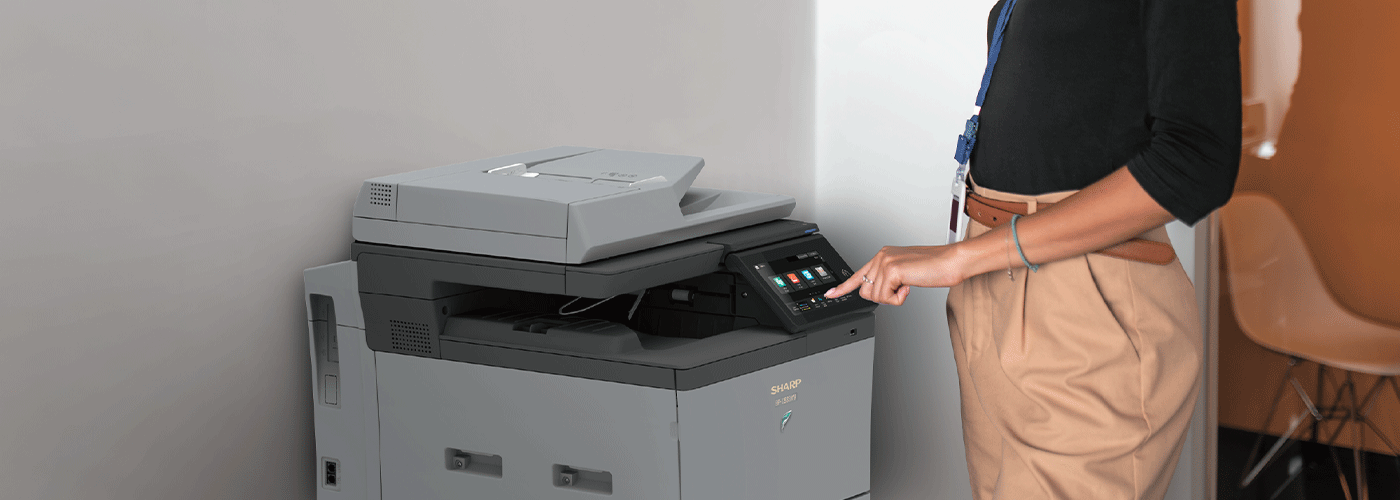
How to Choose a Multifunction Printer for Workflow Automation and Software Integration
Modern businesses are no longer evaluating multifunction printers (MFPs) based only on print speed, cost per page, or device features.
Today’s leading organisations are asking a different question:
“Can our multifunction printers help us automate document workflows, improve security, reduce manual processing, and integrate with the digital platforms our teams already use?”
A modern MFP is no longer just an output device. It has become a connected business platform that helps organisations capture information, digitise paper processes, automate workflows, and securely move documents through the business.
For New Zealand organisations managing compliance requirements, hybrid working environments, and increasing pressure to improve efficiency, choosing the right MFP and workflow ecosystem is a strategic technology decision.
This guide explains the key criteria businesses should use when evaluating MFP brands for workflow automation, software integration, security, and long-term business value.
Key Criteria for Workflow Automation-Ready MFPs
| Evaluation Area | What Modern Businesses Should Expect |
| Financial Entry Point | Integrated automation and Managed Print solutions available from approximately $100 per month, depending on requirements |
| Measurable Outcomes | Workflow improvements and efficiency gains typically identified within 30–90 days following optimisation |
| Business Scale | Solutions designed to support environments ranging from 10 to 5,000+ users |
| Security Baseline | Alignment with the New Zealand Privacy Act 2020, secure authentication, encrypted document handling, and Microsoft identity integration |
| Cloud Integration | Direct scanning workflows into Microsoft 365 environments including OneDrive and SharePoint |
| Document Automation Partners | Compatibility with workflow platforms including Umango, PaperCut and document management solutions |
| Identity Management | Native integration with Microsoft Entra ID for secure user authentication |
Why Modern MFPs Are Becoming Digital Workplace Gateways
Historically, businesses viewed printers as standalone office equipment. Employees printed documents, scanned paperwork, and manually transferred information between systems.
This approach creates hidden inefficiencies:
- Employees spend time manually entering information from paper documents
- Important documents can be stored inconsistently across locations
- Sensitive information may be left unsecured in print trays
- IT teams manage disconnected hardware and software environments
- Paper-based approval processes slow business decisions
Modern multifunction printers solve this by becoming an intelligent entry point into digital workflows.
A workflow-enabled MFP can help businesses:
- Digitise paper documents immediately
- Capture information directly into business systems
- Route documents automatically to the correct teams
- Secure confidential information through authentication
- Reduce repetitive administrative tasks
- Improve visibility of document processes
The result is a transition from document handling to document automation.
What Makes an MFP Ready for Workflow Automation?
Not all multifunction printers provide the same level of integration.
When evaluating MFP solutions, organisations should consider whether the platform provides native integration with existing business systems or relies heavily on additional middleware, manual configuration, or disconnected software tools.
The difference impacts deployment time, security, scalability, and ongoing management.
MFP Workflow Automation Selection Matrix
| Selection Factor | The Sharp NZ Approach | Traditional Approach | Business Benefit |
| Identity & Access Management | Native Microsoft Entra ID and Microsoft 365 identity integration | Manual user setup or additional authentication layers | Improved security and removal of unmanaged guest access |
| Document Capture | Native integration capability with workflow solutions including Umango | Separate capture tools requiring additional contracts and administration | Simplified deployment and consistent document processing |
| Cloud Workflows | Direct scanning workflows into OneDrive and SharePoint environments | Complex redesign of existing processes | Faster digitisation of contracts, records and business documents |
| Security Protection | Device security features including Bitdefender® antimalware protection | Reliance on external security layers only | Additional protection for documents and device environments |
| User Experience | Intuitive touchscreen workflows designed around business processes | Basic scan and print functionality | Higher adoption and reduced training requirements |
| Management & Reporting | Integration with Managed Print Services monitoring and optimisation tools | Limited visibility of device usage | Better cost control and proactive management |
The Role of Intelligent Document Capture with Umango
Document capture is one of the most important capabilities when moving from traditional printing to workflow automation.
Sharp MFPs integrate with intelligent capture solutions such as Umango to help businesses transform paper documents into structured digital information.
Instead of simply creating a PDF scan, intelligent capture solutions help organisations automate what happens next.
Automated Data Extraction
Businesses can capture information from documents such as:
- Supplier invoices
- Customer forms
- Contracts
- Compliance records
- Delivery documents
- Application forms
Information can be extracted, classified, and routed into the appropriate business process.
For example:
Traditional Process
Invoice arrives → employee scans document → manually names file → emails approval request → stores document
Automated Process
Invoice scanned → information extracted → document routed automatically → approval workflow triggered → digital record created
Secure Document Routing
Workflow-enabled MFPs allow businesses to create secure scanning pathways into existing environments.
Examples include:
- Scan directly to SharePoint document libraries
- Store documents securely in OneDrive
- Route files to approved network locations
- Integrate with document management systems
This reduces manual handling and helps maintain stronger document governance.
Connecting MFPs with Microsoft 365 Workflows
Many New Zealand organisations already use Microsoft 365 as their central productivity platform.
A workflow-ready MFP should integrate naturally with these environments.
Key capabilities include:
Scan to Microsoft SharePoint
Useful for:
- Contract management
- Employee records
- Compliance documentation
- Project documentation
Scan to OneDrive
Useful for:
- Individual document workflows
- Remote working environments
- Personal productivity
Microsoft Entra ID Authentication
Enables users to securely access MFP functions using existing business credentials.
Benefits include:
- Reduced password management
- Improved access control
- Better visibility of user activity
- Alignment with existing IT security policies
IT Manager’s Technical Integration Checklist
Before deploying workflow-enabled MFPs, IT teams should evaluate the following:
✔ Identity & Access Management
Confirm the MFP platform can integrate with existing corporate authentication systems.
Consider:
- Microsoft Entra ID compatibility
- User authentication methods
- Role-based permissions
- Secure release printing
✔ Network Security Hardening
Review device configuration to reduce unnecessary exposure.
Recommended checks:
- Disable unused network services
- Remove legacy protocols where possible
- Restrict administrative access
- Apply security configuration standards
✔ Temporary Data Protection
Multifunction printers process sensitive business information.
Confirm:
- Temporary document images are automatically deleted
- Storage encryption is enabled
- Data retention policies are configured appropriately
✔ Firmware & Security Updates
Establish processes for:
- Regular firmware updates
- Security patch management
- Device monitoring
- Vulnerability response
Workflow Automation and the 180-Day Transformation Journey
Successful automation does not happen by simply installing new equipment.
The strongest results come from a structured optimisation approach.
Stage 1: Stabilisation (Days 0–60)
The first priority is understanding the current environment.
Activities include:
- Printer fleet assessment
- Device utilisation review
- Cost benchmarking
- Service consolidation
- Security baseline review
Business outcome:
A clearer understanding of current costs, risks, and improvement opportunities.
Stage 2: Optimisation (Days 60–120)
Once the environment is stabilised, organisations can introduce automation improvements.
Examples:
- Automated print rules
- Secure release printing
- Usage dashboards
- Department reporting
- Digital scanning workflows
Business outcome:
Reduced waste, improved productivity, and better control.
Stage 3: Transformation (Days 120–180)
The final stage moves beyond print management into digital process improvement.
Examples:
- Intelligent document capture
- Automated approval workflows
- Document management integration
- Sustainability reporting
- Advanced analytics
Business outcome:
A connected document ecosystem that supports wider digital transformation goals.
How to Choose the Right Workflow Automation MFP Partner
When selecting an MFP provider, organisations should look beyond hardware specifications.
The right partner should provide:
Technology Integration
Can the solution connect with your existing:
- Microsoft 365 environment
- Document management systems
- Authentication platforms
- Business applications
Security Capability
Does the solution support:
- Secure authentication
- Data protection
- Device hardening
- Privacy compliance
Business Understanding
Can the provider help identify:
- Manual processes that should be automated?
- Documents creating bottlenecks?
- Security risks?
- Cost optimisation opportunities?
Long-Term Support
A successful workflow automation strategy requires:
- Implementation support
- User adoption assistance
- Ongoing optimisation
- Proactive service management
Why Sharp NZ for Workflow Automation?
Sharp NZ helps organisations move beyond traditional printing by connecting multifunction printers with the digital systems that power modern workplaces.
Through a combination of:
- Advanced multifunction devices
- Managed Print Services
- Workflow automation software
- Microsoft 365 integration
- Secure document solutions
- Local New Zealand support
Sharp helps businesses create more efficient, secure, and connected document environments.
Request a Workflow Automation Assessment
If your organisation is reviewing its printer fleet, document processes, or digital workplace strategy, a workflow assessment can identify opportunities to:
- Reduce manual document handling
- Improve security
- Automate repetitive processes
- Better integrate with Microsoft 365
- Optimise print and document costs

Shaun Taylor is the National Sales Manager at Sharp New Zealand, with over 20 years’ experience in business technology, print solutions, and managed services. He specialises in helping organisations improve productivity, strengthen print security, and modernise workplace workflows through practical, scalable technology solutions.