Facilities & Comms Deployment Playbook: Mounting, Power, Content Workflow & Site Commissioning
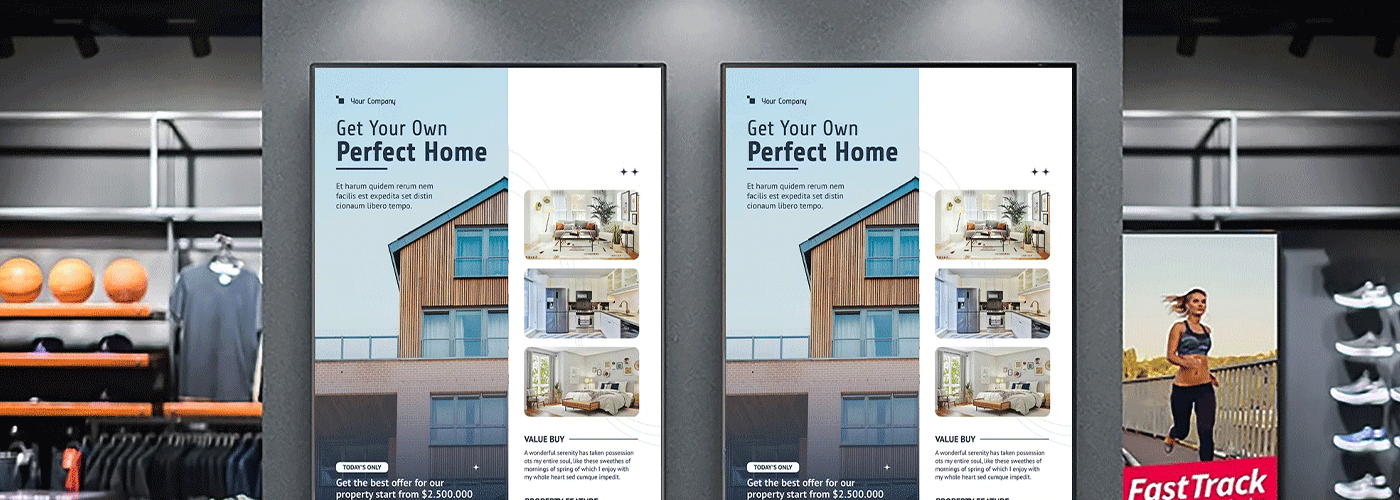
How to Deploy and Commission Commercial Displays in New Zealand
From Display Installation to Operational Go-Live: A Practical NZ Deployment Guide
Deploying a commercial display fleet involves more than mounting screens on walls and connecting them to power. A successful rollout requires coordination between Facilities, IT, Internal Communications, Operations and the display technology partner.
For New Zealand organisations, the implementation process should account for structural load requirements, seismic considerations, electrical installation, ventilation, network connectivity, content governance and ongoing operational ownership.
This guide provides a practical commercial display deployment playbook for New Zealand facilities and communications teams, covering the five stages from site assessment through to final commissioning and content publishing.
Quick answers: commercial display deployment in NZ
What are the key facilities requirements for commercial display installation in NZ?
Key requirements include verifying the wall or mounting structure can support the display, selecting appropriate mounting hardware and seismic restraints, providing suitable electrical outlets, maintaining ventilation clearances and ensuring mobile displays use appropriately rated trolleys or floor stands.
How do communications teams manage content across multiple sites?
A centralised digital signage CMS such as e-Signage S can allow communications teams to manage playlists, schedules and screen content from a browser-based interface. Role-based permissions can also help separate national content management from local site updates.
Do commercial displays need an external media player?
Not necessarily. Compatible Sharp commercial displays with integrated System-on-Chip (SoC) functionality can support standalone content playback, reducing the requirement for additional media player hardware for suitable signage applications.
What should be checked before a display goes live?
A complete commissioning process should verify physical installation, electrical operation, network connectivity, content playback and operational ownership before the screen is handed over for live use.
Stage 1: Facilities & Structural Readiness
The first stage of a commercial display deployment is determining whether the proposed location is physically suitable.
This is where Facilities and project teams should establish the requirements for wall construction, display weight, mounting position, seismic restraint, ventilation, accessibility, cable routing and ongoing maintenance access.
1. Assess the wall and mounting structure
Commercial displays can range from compact 43-inch screens through to large-format 86-inch, 98-inch and larger solutions. The mounting method therefore needs to be selected according to the display's size and weight as well as the construction of the wall or supporting structure.
Before installation, confirm:
- Wall substrate and construction
- Available fixing points
- Display weight and dimensions
- Mounting bracket load rating
- Required viewing height
- Cable entry and routing requirements
- Access for future maintenance
- Clearance around ventilation openings
- Potential impact or tampering risks
- Whether additional structural reinforcement is required
Concrete, reinforced timber and steel-stud walls have different fixing requirements. A wall that appears suitable visually may not necessarily provide adequate structural support for a large commercial display.
A site assessment should therefore take place before mounting hardware is ordered or installation begins.
2. Consider seismic restraint requirements
New Zealand's seismic environment makes appropriate restraint an important consideration when installing large displays in workplaces, education environments, healthcare facilities and public-facing spaces.
The installation should consider the building structure, display weight, mounting system and location, with appropriate restraints selected for the specific application.
For fixed installations, the wall-mounting solution should be appropriate for the substrate and intended load. For mobile displays, the trolley or stand needs to provide sufficient stability for the screen and intended environment.
Where seismic restraint requirements apply, organisations should engage appropriately qualified building, structural or installation professionals to verify the solution for the site.
3. Use appropriate mobile display trolleys
Not every display needs to be permanently wall mounted.
Meeting rooms, classrooms, training areas and flexible workplace environments may benefit from mobile displays that can be repositioned between spaces.
A heavy-duty mobile trolley such as the Sharp PN-ZS703 can provide a mobile mounting option for compatible larger-format displays, including applications involving screens 65 inches and above.
Facilities teams should verify:
- Display and trolley compatibility
- Maximum supported display weight and size
- Wheel-lock operation
- Stability on the intended floor surface
- Cable management
- Route clearance between rooms
- Storage requirements
- Accessibility and health and safety considerations
The objective is not simply to make the screen mobile. It is to ensure the complete screen-and-trolley combination remains stable, manageable and appropriate for the environment.
4. Allow sufficient ventilation
Commercial displays generate heat during operation, particularly when used for extended periods.
Maintain the manufacturer's recommended ventilation clearances around the display and avoid enclosing ventilation openings within cabinetry or wall structures.
As a practical planning consideration, the outline for this deployment model uses 50 mm minimum rear and side clearance, subject to the specific display manufacturer's installation requirements.
Facilities teams should always check the installation documentation for the particular display model rather than applying one clearance measurement universally.
5. Consider lighting and screen positioning
Display placement also affects visibility.
High-brightness commercial displays, including Sharp's PN-HY Series at up to 500 cd/m² and PN-HS Series at up to 700 cd/m², can be considered for environments where ambient lighting presents a challenge.
However, brightness alone does not solve poor positioning.
During the site survey, check:
- Direct sunlight
- Window reflections
- Overhead lighting
- Viewer sightlines
- Glare
- Viewing distance
- Screen height
- Potential obstructions
Where supported, ambient-light sensing can also help displays respond to changing environmental conditions.
Stage 2: Electrical & Power Commissioning
Once the physical installation has been confirmed, the next priority is reliable power.
Power planning should happen before the screen is mounted rather than being treated as an installation-day detail.
1. Plan electrical outlets during the site survey
For wall-mounted displays, a suitably positioned electrical outlet behind or close to the display can reduce visible cabling and help create a cleaner installation.
Depending on the building and installation, Facilities teams should coordinate with qualified electrical contractors to determine:
- Outlet location
- Circuit requirements
- Cable routing
- Isolation requirements
- Power capacity
- Surge protection
- Access for maintenance
- Compliance with applicable electrical requirements
The final electrical configuration should be determined by a suitably qualified electrician and the requirements of the specific site.
2. Separate power planning from network planning
A common deployment mistake is treating power and connectivity as the same installation task.
They should be planned together but verified independently.
Every screen should have a documented answer to two questions:
How does it receive power?
and
How does it receive content?
The answer may vary depending on whether the display is operating as a standalone screen, connected to a CMS, using wired Ethernet or operating through another network configuration.
3. Configure automated power schedules
Commercial displays can be configured for automated power-on and power-off schedules where supported.
For example, an office might configure screens to:
- Power on before employees arrive
- Display content during business hours
- Enter standby outside operating hours
- Resume automatically the following morning
Automated scheduling can reduce unnecessary operating hours and support energy-management objectives.
It can also help establish consistent fleet behaviour across multiple locations.
For larger deployments, power schedules should be documented alongside content schedules so Facilities and Communications teams understand what happens to each screen outside normal operating hours.
Stage 3: Network Onboarding & Display Configuration
The physical screen is only one part of a connected digital signage deployment.
Where displays are centrally managed, IT should establish the network and security requirements before content publishing begins.
1. Confirm network connectivity
Each connected display should be tested against the organisation's network requirements.
Depending on the deployment, this may include:
- Wired Ethernet or approved wireless connectivity
- Network authentication
- VLAN configuration
- Firewall requirements
- DNS availability
- Internet connectivity where required
- CMS communication
- Device naming conventions
- Remote management requirements
IT should document each display as an identifiable network endpoint where appropriate.
2. Establish device naming and ownership
A standard naming convention becomes increasingly important as the fleet grows.
Instead of generic names such as:
Display-01
a structured naming system could identify the site, building, floor and room.
For example:
AKL-HQ-L03-RECEPTION-01
This makes it easier for IT and Communications teams to identify the correct screen when scheduling content, troubleshooting connectivity or responding to an incident.
3. Complete security hardening
Connected displays should be incorporated into the organisation's wider technology governance framework.
Consider:
- Restricting unnecessary network access
- Managing administrator credentials
- Applying available firmware and software updates
- Controlling physical access to USB ports where appropriate
- Documenting device ownership
- Reviewing CMS user permissions
- Separating signage infrastructure from sensitive systems where appropriate
The precise security architecture should be determined by the organisation's IT and cybersecurity requirements.
Stage 4: Communications & Content Publishing Workflow
Once displays are physically installed and connected, Internal Communications becomes a central part of the deployment.
A successful signage fleet needs more than attractive content. It needs a repeatable publishing workflow.
1. Centralise content distribution with e-Signage S
For organisations managing multiple screens, a centralised platform such as Sharp e-Signage S can provide a way to manage display content from a browser-based environment.
The platform can support workflows such as:
- Create or upload content
- Organise content into playlists
- Assign content to displays or groups
- Schedule publishing
- Review screen status
- Update content remotely
- Manage multiple locations from a central environment
For larger deployments, centralised management can reduce the need for teams to manually update individual screens.
The supplied deployment specification supports management of up to 1,000 displays, making the model suitable for organisations planning multi-site digital signage networks.
2. Establish Role-Based Access Control
Not every user needs access to every screen.
A national communications team might need permission to manage all corporate messaging, while a regional office manager may only need access to screens within their location.
A practical governance structure could include:
| Role | Typical responsibility |
| System Administrator | Platform configuration, users and permissions |
| National Comms | Corporate campaigns and organisation-wide messaging |
| Regional Comms | Regional content and local campaigns |
| Site Manager | Local notices and site-specific information |
| Facilities / IT | Device status, infrastructure and troubleshooting |
| Approver | Content governance and publishing approval |
This approach helps reduce accidental publishing and gives organisations greater control over who can change customer-facing or employee-facing content.
3. Create approval workflows
A content approval process is particularly important when digital signage is used for corporate communications.
A simple workflow can be:
Draft → Review → Approval → Schedule → Publish → Monitor
For sensitive communications, a second approval may be required before publishing.
The workflow should also define who can:
- Create content
- Edit content
- Approve content
- Schedule content
- Publish content
- Remove content
- Trigger priority messages
4. Build priority emergency messaging
Digital signage can also form part of an organisation's internal emergency communications strategy.
Where the technology and configuration support it, priority messaging can be designed to interrupt standard playlists with urgent communications such as:
- Evacuation instructions
- Civil defence information
- Severe weather notices
- Site closure information
- Security alerts
- Health and safety notifications
The emergency workflow should be agreed between Facilities, Security, IT and Internal Communications before deployment.
The key principle is simple: everyone should know who can trigger an emergency message and what happens to normal content when it is activated.
Stage 5: Content, Hardware & Site Commissioning
Commissioning is the point where the physical installation and digital workflow come together.
A screen should not be considered ready for operational use simply because it turns on.
The commissioning process should verify the complete chain from wall to power to network to content.
Five-point commercial display commissioning checklist
1. Physical installation
- Display securely mounted
- Mounting hardware verified
- Seismic restraint addressed where required
- Screen level and correctly positioned
- Ventilation clearances maintained
- Cable management completed
- Mobile trolley stability checked where applicable
2. Electrical commissioning
- Power connection verified
- Outlet and circuit confirmed
- Power-on behaviour tested
- Standby behaviour tested
- Automated schedules configured
- Surge protection considered where appropriate
3. Network commissioning
- Network connection established
- Display identified correctly
- CMS connectivity confirmed
- Device permissions verified
- Firmware/software status checked
- Remote management tested where applicable
4. Content commissioning
- Correct playlist assigned
- Screen orientation verified
- Resolution and aspect ratio checked
- Scheduled content tested
- Audio tested where applicable
- Emergency or priority messaging tested where configured
5. Operational acceptance
- Facilities sign-off completed
- IT sign-off completed
- Communications sign-off completed
- Vendor/integrator sign-off completed
- Documentation handed over
- Support and escalation process confirmed
Implementation RASCI Matrix
A clear RASCI structure prevents deployment responsibilities from becoming unclear between Facilities, IT, Communications and the technology partner.
| Rollout Stage | Facilities Manager | IT Infrastructure | Internal Comms Lead | Vendor / Integrator |
| 1. Site Survey & Wall Assessment | A/R | C | I | C/S |
| 2. Physical Mounting & Power | A/R | I | I | S |
| 3. Network & Security Configuration | I | A/R | I | S |
| 4. CMS Onboarding & Content Workflow | I | C | A/R | S |
| 5. Final Acceptance & Go-Live | C | C | A/R | S |
R = Responsible | A = Accountable | C = Consulted | I = Informed | S = Supported
This structure can be adapted depending on whether the organisation uses an internal AV team, electrical contractor, AV integrator or managed technology partner.
Site Commissioning Documentation
For multi-site deployments, commissioning should generate a consistent record for every display.
A useful display commissioning record can include:
Site: Auckland Head Office
Building / Floor: Level 3
Display ID: AKL-HQ-L03-RECEPTION-01
Display Model: [Model]
Screen Size: [Size]
Mount Type: Wall / Trolley / Stand
Network: Wired / Wireless
CMS: e-Signage S
Playlist: [Playlist Name]
Power Schedule: [Schedule]
Facilities Sign-off: [Name / Date]
IT Sign-off: [Name / Date]
Comms Sign-off: [Name / Date]
Vendor Sign-off: [Name / Date]
Maintaining this information creates a useful operational record for future troubleshooting, maintenance, refresh planning and fleet management.
Common Commercial Display Deployment Mistakes
Several issues can be avoided by involving the right teams early.
Mounting before assessing the wall
Installing the mounting hardware before confirming the substrate can create structural and rework issues.
Better approach: complete the site survey and structural assessment first.
Treating power as an afterthought
Visible cables, inaccessible outlets and poorly positioned power points can compromise the finished installation.
Better approach: coordinate electrical requirements during the initial design phase.
Installing screens without a content governance model
A fleet can be technically operational but still fail to deliver value if nobody owns the publishing process.
Better approach: define content ownership, approval and publishing responsibilities before go-live.
Giving every user the same CMS permissions
Unrestricted access increases the risk of accidental changes or inappropriate content being published.
Better approach: use role-based permissions aligned to organisational responsibilities.
Forgetting what happens during an emergency
If emergency messaging is not tested before deployment, teams may discover during an incident that nobody knows how to override standard content.
Better approach: define and test the priority messaging workflow during commissioning.
Treating commissioning as a one-day installation task
A display that turns on is not necessarily a fully commissioned display.
Better approach: verify the entire workflow from physical installation through to network connectivity, scheduled content and operational ownership.
Frequently Asked Questions
What are the seismic mounting requirements for commercial displays in New Zealand?
Commercial displays installed in New Zealand should use mounting and restraint solutions appropriate to the display, building structure, installation environment and applicable requirements. Fixed installations require suitable structural fixing, while mobile installations should use stable, appropriately rated equipment. Site-specific seismic requirements should be confirmed by appropriately qualified professionals.
Do digital signage screens require an external media player?
Not always. Compatible Sharp commercial displays with integrated System-on-Chip technology and USB playback capabilities can run suitable signage content directly from the display. This can reduce additional hardware, cabling and potential points of failure.
How can communications teams schedule content across multiple NZ locations?
A centralised digital signage CMS such as e-Signage S can allow authorised users to manage playlists, schedules and content across multiple displays from a central platform. Role-based permissions can be used to distinguish national, regional and local publishing responsibilities.
How many displays can e-Signage S manage?
The deployment specification for this solution supports management of up to 1,000 displays, providing a model for centralised management of large multi-site commercial display fleets.
What is the difference between installation and commissioning?
Installation is the physical process of mounting and connecting the display.
Commissioning verifies that the complete solution works as intended. This includes physical stability, power, network connectivity, CMS configuration, content playback, scheduling and operational sign-off.
Should digital signage displays be connected to the corporate network?
The answer depends on the organisation's architecture and signage requirements. Where displays require centralised CMS management, network connectivity is typically required. IT teams should determine the appropriate network segmentation, access controls and security requirements for the environment.
How does Sharp NZ support commercial display deployment?
Sharp NZ can support commercial display projects through site planning, display hardware selection, deployment support, CMS onboarding, training and ongoing service requirements. For multi-site projects, the implementation approach can be structured around Facilities, IT and Communications responsibilities to provide a clear path from site survey through to operational handover.
Summary: From Screen Installation to a Managed Display Fleet
A successful commercial display deployment is not simply a hardware installation. It is a coordinated process that connects Facilities, IT, Internal Communications and the technology partner.
The strongest deployment approach is built around five stages:
- Assess the site for structure, seismic considerations, ventilation and positioning.
- Plan power and configure appropriate automated operating schedules.
- Connect and secure the technology through the organisation's IT environment.
- Establish content governance using centralised publishing, permissions and approval workflows.
- Commission and sign off the complete solution before moving into business-as-usual operation.
For organisations deploying displays across offices, education facilities, healthcare environments, retail locations or multiple sites, this approach provides a repeatable framework for moving from individual screens to a managed commercial display fleet.
Looking to deploy commercial displays across your organisation? Sharp NZ can help assess your requirements, from display selection and site planning through to installation, e-Signage S onboarding and ongoing support. Talk to Sharp NZ about planning your commercial display deployment.

Craig Betteridge is a Product Marketing Manager at Sharp New Zealand, specialising in visual solutions, visitor management, voice and data, and workplace software. With extensive experience across leading technology brands, he brings a strong understanding of enterprise technology and customer needs, focused on helping organisations improve efficiency, security, and workplace performance.